 IPeeTV
Install IPeeTV On Any Device
Step-by-step setup for Firestick, Android, Google Pixel, iOS, and Smart TVs. Pick your device below.
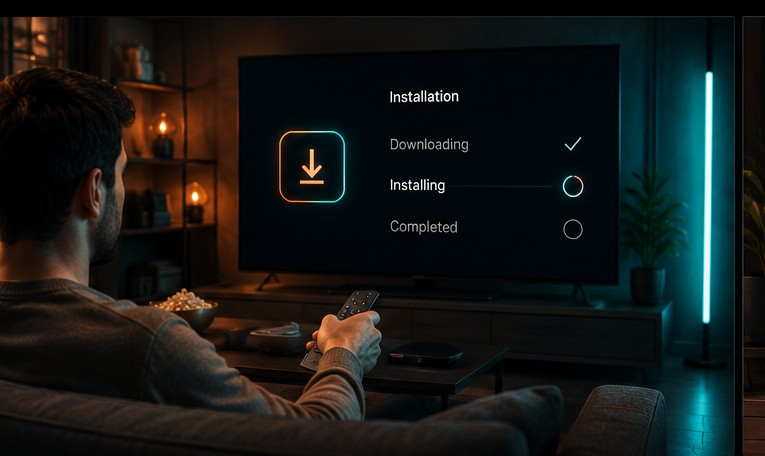
Install IPeeTV On Amazon Firestick & Fire TV
IPeeTV for Firestick works through a sideloaded player app since it isn't distributed via the Amazon Appstore. The whole process takes about five minutes.

Enable apps from unknown sources
On your Firestick, go to Settings > My Fire TV > Developer Options and turn on Apps from Unknown Sources.
Install the Downloader app
From the Firestick home screen, search for and install Downloader from the Appstore.
Download the IPeeTV player
Open Downloader and enter the player URL provided in your welcome email, then install the APK.
Enter your activation details
Launch the player and input your Xtream Codes username/password or your M3U playlist URL.
Start watching
Your live channel guide and VOD library load automatically. Add the app to your Fire TV home row for quick access.
Install IPeeTV On Android & Google Pixel
IPeeTV works on any Android phone or tablet, including Google Pixel devices. There are two ways to install it: sideloading the APK or installing from the Play Store.
Allow installs from unknown sources
On your Google Pixel, open Settings > Apps > Special app access > Install unknown apps and allow it for your browser.
Download the APK
Open the download link from your welcome email in Chrome on your phone and tap to download the IPeeTV player APK.
Install the app
Open the downloaded file and tap Install. Pixel devices may show a Play Protect warning — tap Install anyway since this is expected for sideloaded IPTV apps.
Log in with your credentials
Enter your Xtream Codes login or paste your M3U URL when the app opens.
Enjoy your channels
Browse live TV by category or search the VOD library directly from the home screen.
Install IPeeTV On iOS
Download a supported IPTV player
Install a compatible Xtream Codes / M3U player from the App Store, such as any general-purpose IPTV player app.
Add your IPeeTV line
Open the player, choose "Add Xtream Codes account" or "Add M3U URL," and enter your IPeeTV details.
Sync and stream
The app pulls your channel list and VOD catalogue automatically — tap any title to start watching.
Install IPeeTV On Smart TV, Windows & Mac
Open the IPeeTV web player
On your Smart TV, Windows PC, or Mac browser, visit the web player link from your welcome email — no download required.
Sign in
Enter your Xtream Codes login or your M3U playlist URL to load your subscription.
Cast or watch directly
Stream directly in the browser, or cast to your TV using Chromecast or your TV's built-in screen mirroring.
Install Questions
Don't Have A Plan Yet?
Subscribe now and get your activation details within minutes.
View Pricing Plans